
 0
0



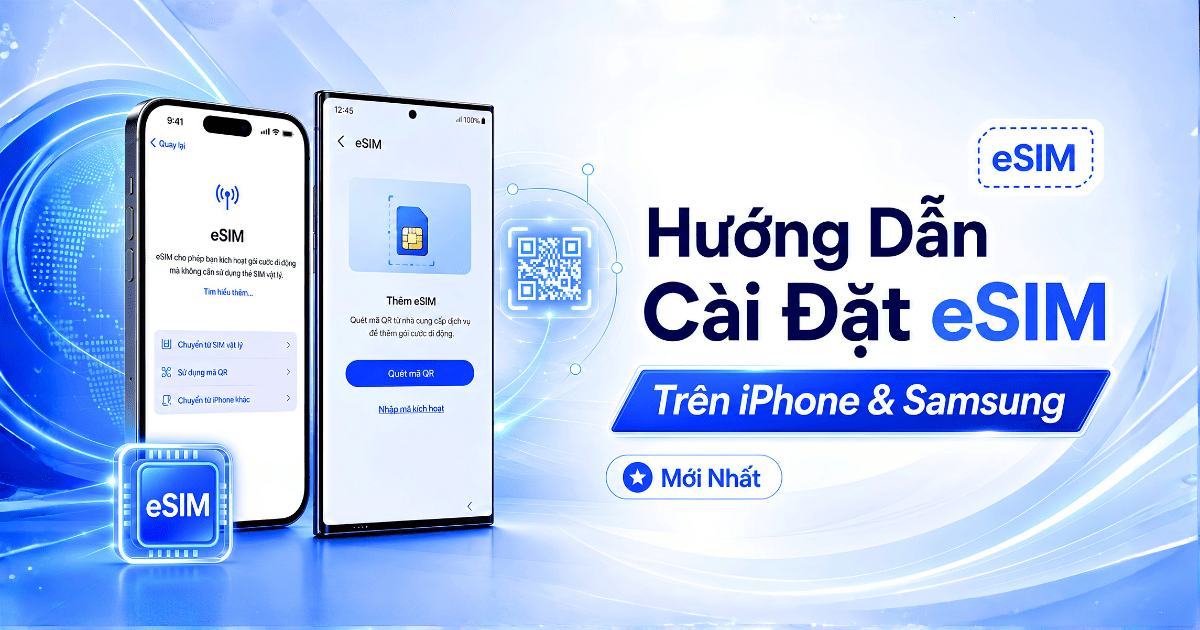
Guide to Setting Up an eSIM on iPhone and Samsung This article provides instructions on how to set up an eSIM on iPhone and Samsung devices. You can use travel eSIMs in many countries such as Thailand, Japan, South Korea, Singapore, Malaysia, China, Taiwan, and others. After purchasing an eSIM from the Account Box, you will receive a QR code. Please connect to a stable Wi-Fi network and follow the steps below to set up the eSIM. Important Notes Before Setting Up the eSIM Before setting up, you need to prepare: An eSIM-compatible phone. A stable Wi-Fi connection. The eSIM QR code received from the Account Box. Do not delete the eSIM after successful setup, as you will still need to use it. Note: The eSIM QR code is typically intended for a one-time setup. Therefore, make sure to set it up correctly on the mobile phone you intend to use. How to set up an eSIM on an iPhone Step 1: Go to the Add eSIM section On an iPhone, go to: Settings > Cellular > Add eSIM Or if your device is in English: Settings > Cellular > Add eSIM Step 2: Scan the eSIM QR code Select Scan QR Code / Use QR Code. Then use your phone’s camera to scan the eSIM QR code received from the Account Box. Once your phone has received the eSIM, follow the on-screen instructions to complete the setup. Step 3: Select the eSIM to use mobile data After setup is complete, go to: Settings > Mobile > Mobile Data Or: Settings > Mobile > Mobile Data Then select the eSIM you just set up to use the data network. Step 4: Enable data roaming If you use eSIM while traveling abroad, turn on Data Roaming for the eSIM. - Settings > Mobile > Select the eSIM you just set up > Enable Data Roaming Or in English: Settings > Mobile > Select eSIM > Data Roaming Once enabled, the eSIM can use the network in the country where you purchased the plan. How to set up eSIM on Samsung Step 1: Go to Add eSIM On a Samsung phone, go to: Settings > Connections > SIM Manager > Add eSIM Or if your device is in English: Settings > Connections > SIM Manager > Add eSIM Step 2: Scan the eSIM QR code Select Scan QR Code/Scan QR Code. Then use your phone’s camera to scan the eSIM QR code received from the Account Box. Once your phone has received the eSIM, follow the on-screen instructions to complete the setup process. Step 3: Select the eSIM for mobile data After setup is complete, go to: Mobile Data / Mobile Data Then select the eSIM you just set up for mobile data. Step 4: Enable Data Roaming If you use eSIM while traveling abroad, turn on Data Roaming / Data Roaming for eSIM. Go to the eSIM settings, then turn on: Data Roaming / eSIM Data Roaming Once enabled, your phone will use the network based on the eSIM plan you purchased. Quick Summary: How to Set Up eSIM Device Step-by-Step Guide What to do after setup iPhone Settings > Cellular > Add eSIM Scan the QR code, select the eSIM from the list, and turn on Data Roaming SAMSUNG Settings > Connections > SIM Management > Add eSIM Scan the QR code, select eSIM under Mobile Data, enable Data Roaming Common issues when setting up eSIM Unable to scan the encrypted eSIM QR code Please check your Wi-Fi connection, the brightness of the screen displaying the QR code, or try opening the QR code on another device for easier scanning. eSIM setup is complete but there is no network connection Please check the following: The correct eSIM has not been selected in Mobile Data / Mobile Data. Data Roaming is not turned on. Your phone is in an area with no signal. Re-activate the eSIM after installation The eSIM QR code is typically set up only once. If you have deleted the eSIM, you should contact the place where you purchased it for verification and support. Conclusion Setting up an eSIM is very simple. You just need to connect to Wi-Fi, scan the eSIM QR code you received from the Account Box, then select the eSIM as your mobile data plan and enable data roaming if using it abroad. This guide applies to many types of international travel eSIMs on iPhone and Samsung devices.
The Latest Guide to Setting Up eSIM on iPhone and Samsung